The Music Contract Generator forArtists
Create, negotiate and sign professional-grade music contracts through a guided, lawyer-built Q&A that turns real decisions into real agreements.
No subscriptions. No lock-in.
AS FEATURED IN




Common Agreements We Support
Producer: Create a custom music producer agreement to clearly define advances, royalty splits, and master copyright ownership before you head into the studio.
Mixer: Generate a professional mixer contract to securely formalise flat fees, backend royalty points, and official credit requirements for your mixing engineers.
Featured Artist: Draft a comprehensive featured artist agreement to secure vocal clearances, outline master royalty shares, and agree on billing credits for guest performers.
Remixer: Easily build a custom remixer contract to establish upfront delivery fees, master ownership rights, and backend royalties for official track remixes.
Music Collaboration Contracts: Replace generic band agreement templates with dynamic music collaboration contracts that perfectly capture your unique creative and financial partnerships.
Split Sheets for Songwriters: Generate legally robust split sheets for songwriters in minutes to ensure publishing royalties and copyright ownership are divided accurately among all co-writers.
Session Performer: Create clear session performer agreements and work-for-hire contracts to ensure you retain full, unencumbered ownership of the master recordings you fund.
Each agreement is dynamically generated from the terms agreed – not pre-written templates.
Traditional music contracts are broken. We fixed them.
The Old Way
The Songpact Way
Scattered conversations
Endless emails, messages, Word mark-ups, and PDFs - no single source of truth.
Weeks of delays
Waiting on lawyers, chasing replies, missing release windows.
Extensive legal fees
Thousands in costs before you've earned a penny
DIY contract risk
Templates that don't protect your interests
One structured workflow
Everyone on the same page, in one place
Done in minutes
Generate, negotiate and finalise contracts at the pace your release demands.
No hidden costs
Transparent pricing, no legal surprises
Expert-drafted contracts
Built by music lawyers to reflect real-world deals, not generic templates.
Custom Music Agreements Built on Expert Legal Logic
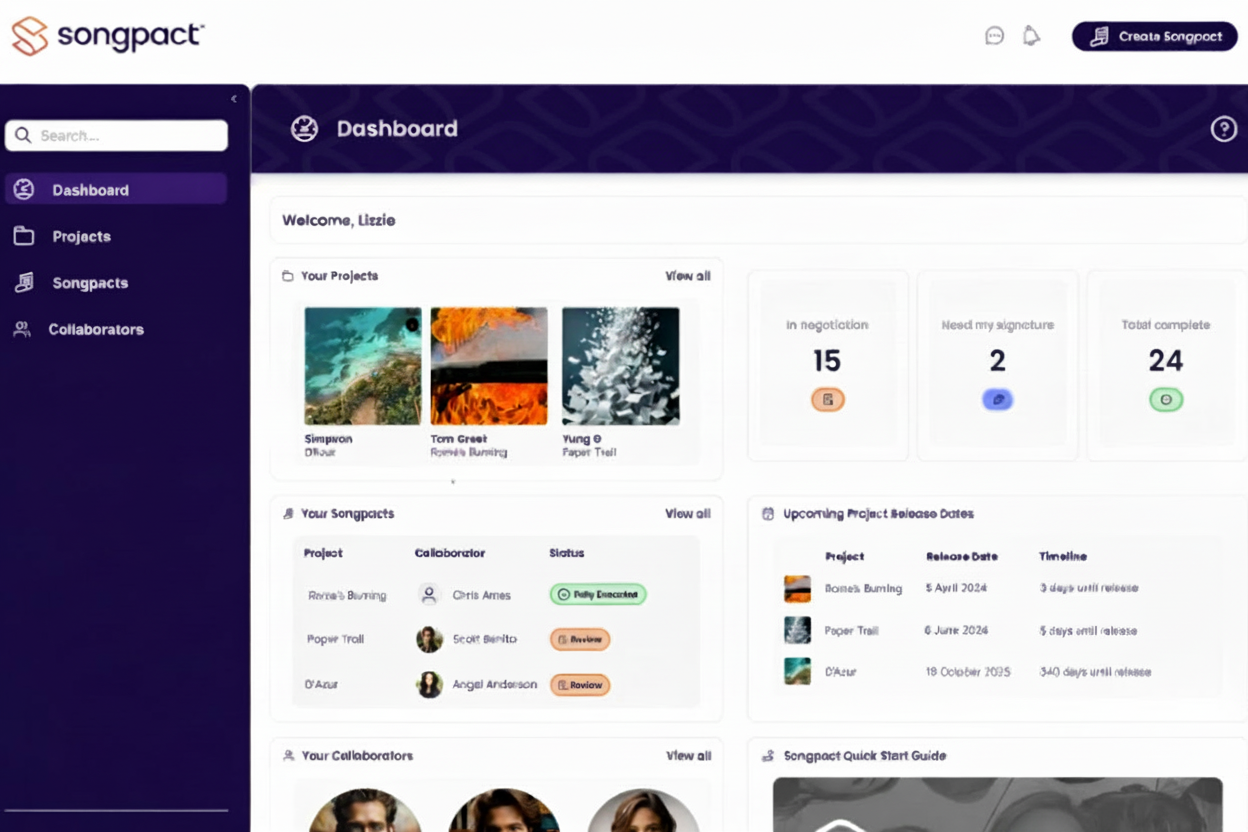
Songpact replaces scattered emails and late-stage paperwork with a single, structured workflow, so agreements are in place before your music goes live.
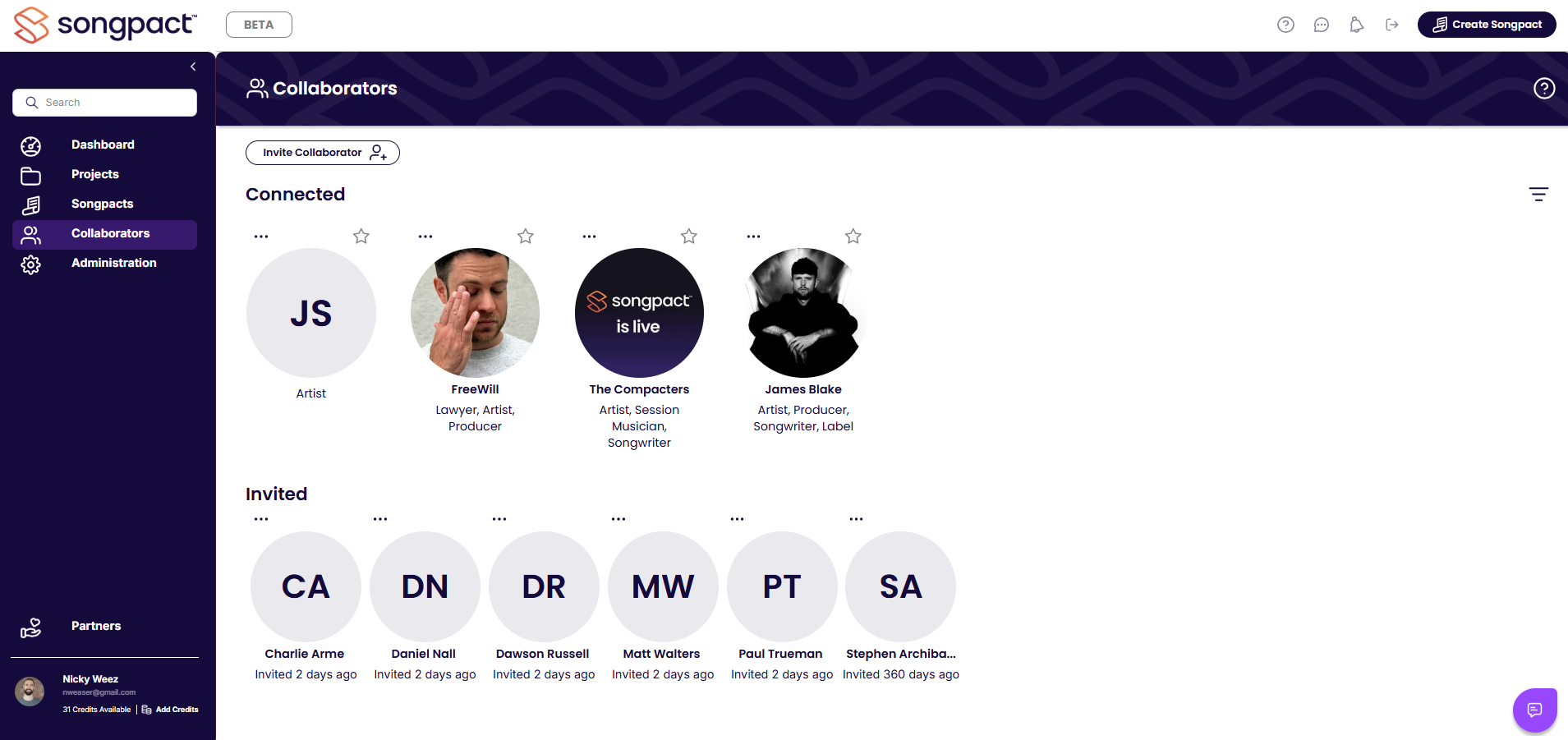
Invite
Bring your collaborators together in one conversation, instead of juggling emails, messages and attachments.
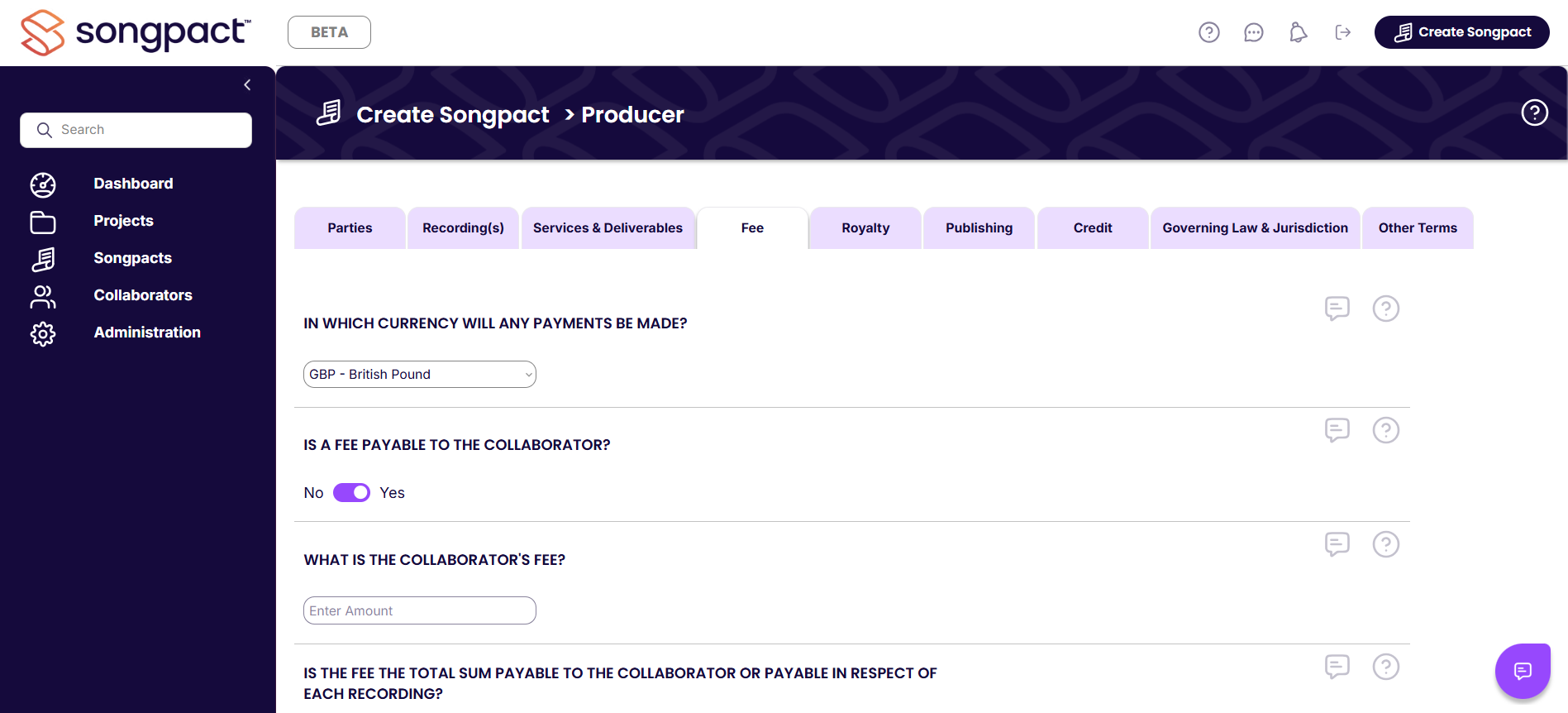
Negotiate
Set splits, terms, and rights with guided questions and plain English explainers. Our smart workflow keeps everyone aligned.
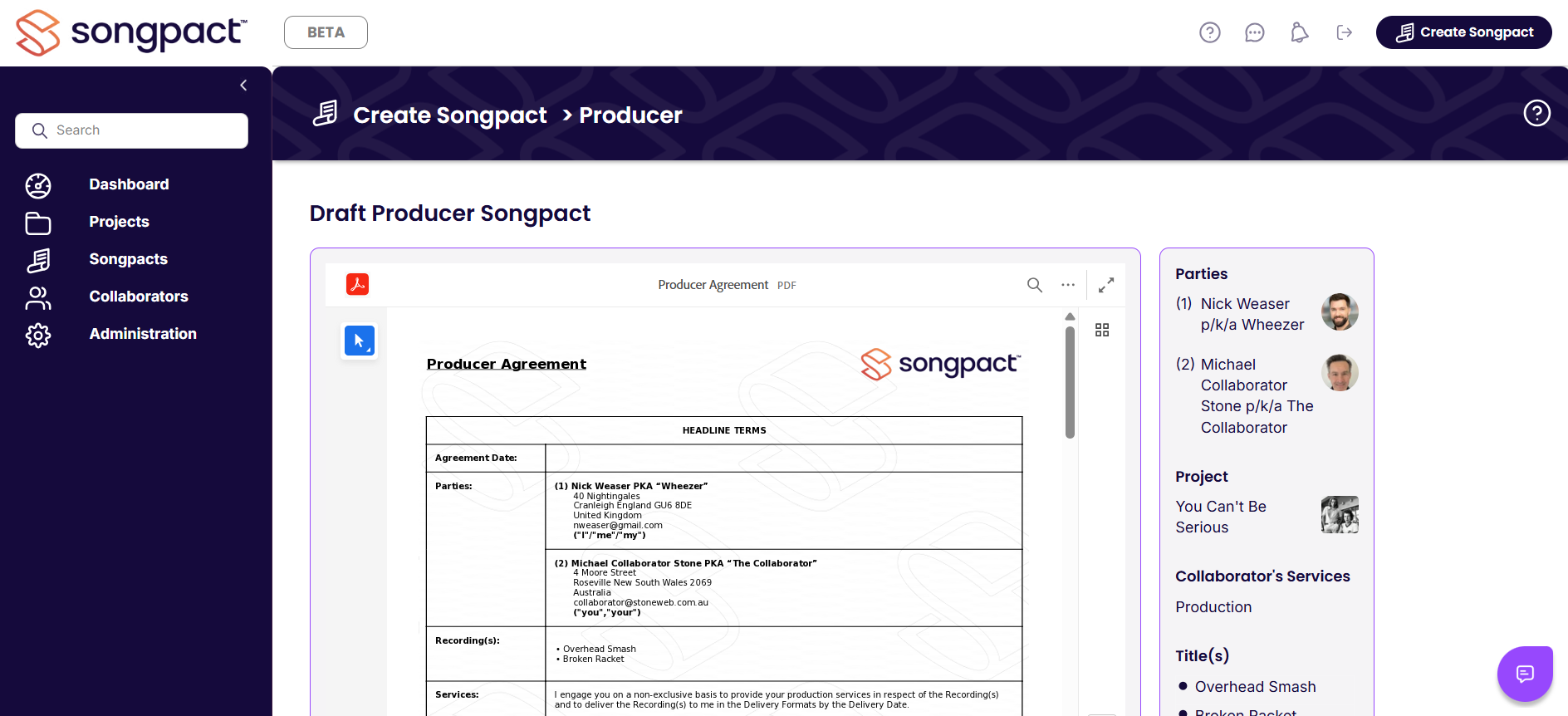
Sign
Your contract is auto-generated from your answers. Secure e-signing gets it done in one click.
Not templates. Real agreements, built from real decisions.
Songpact doesn't give you a static template to fill in.
Instead, you and your collaborators agree the commercial terms together – splits, royalties, recoupment, rights – and Songpact generates a contract that reflects those exact decisions, in plain language.
Every agreement is built dynamically from the terms you agree – not pre-written boilerplate.
Make informed deal decisions without the legal headache.
Songpact explains commercial terms as you go, so everyone understands what they're agreeing to.
Examples
Recoupment means certain upfront costs are paid back first from your share of income.
It changes when you get paid — and how much you see from early royalties.
Songpact asks the right questions, shows the options, and generates the clause to match what you agreed.
See how the Q&A negotiator works
Explore the workflowRecognised across the music industry
Insights from artists, managers, and industry professionals engaging with Songpact.
"Songpact's vision to use technology to streamline the process around agreements is inspirational. Songpact allows artists to focus more on developing their careers and creating more music."

Frequently asked
questions
Ready to get your music deals sorted?
Used by artists, songwriters, producers, managers, and industry professionals across the world.